FAQ Watchdog
Goal
How to use watchdog feed properly
Simulator
Our built-in Simulator does not have any watchdog related functions, thus, we need to download the ADE projects to the control board to conduct the following operations.
Experiment: Let’s insert a busy_function into different widgets and add the watchdog feed to avoid watchdog reboot.
1. Insert busy_function in Python Code widget(without watchdog feed)
Result:
-
busy_function only allows 17 seconds of normal operation. On the 18th second, the watchdog reboot is triggered and the panel is undergoing repeated reboot.
-
Once the watchdog reboot is triggered, users can plug and unplug the USB cable to force the panel into the load firmware mode. Please keep in mind that the USB cable must be connected between a PC running ADE and the Panel’s control board. If the USB cable is unplugged right after powering on, the busy_function is read and executed again.
2. Insert busy_function in Python Code Widget with watchdog feed
Result:
- watchdog feed (core.htm.wdt.feed()) is inserted in busy_function after console log, then Attribute error will be shown: -> ==Error: The attribute or method does not exist - ‘NoneType’ object has no attribute ‘feed’== watchdog will not be triggered (as the execution sequence jumps into except). Without a try-except block, the watchdog reboot occurs.
3. Insert busy_function in Timer or Generic Button Widget (without watchdog feed)
Result:
- Will trigger watchdog reboot with repeated reboot
4. Insert busy function in Timer、Generic Button Widget with watchdog feed
Result:
- Successfully execute watchdog feed without triggering watchdog reboot. The busy_function and the subsequent functions are executed
How to insert watchdog feed (core.htm.wdt.feed())
Watchdog feed is set to be executed later than Python Code Widget does. Thus, if users would like to insert watchdog feed, they should put it into other widgets such as Timer widget. Users can set the Timer widget to call watchdog feed for avoiding watchdog reboot.
Note:
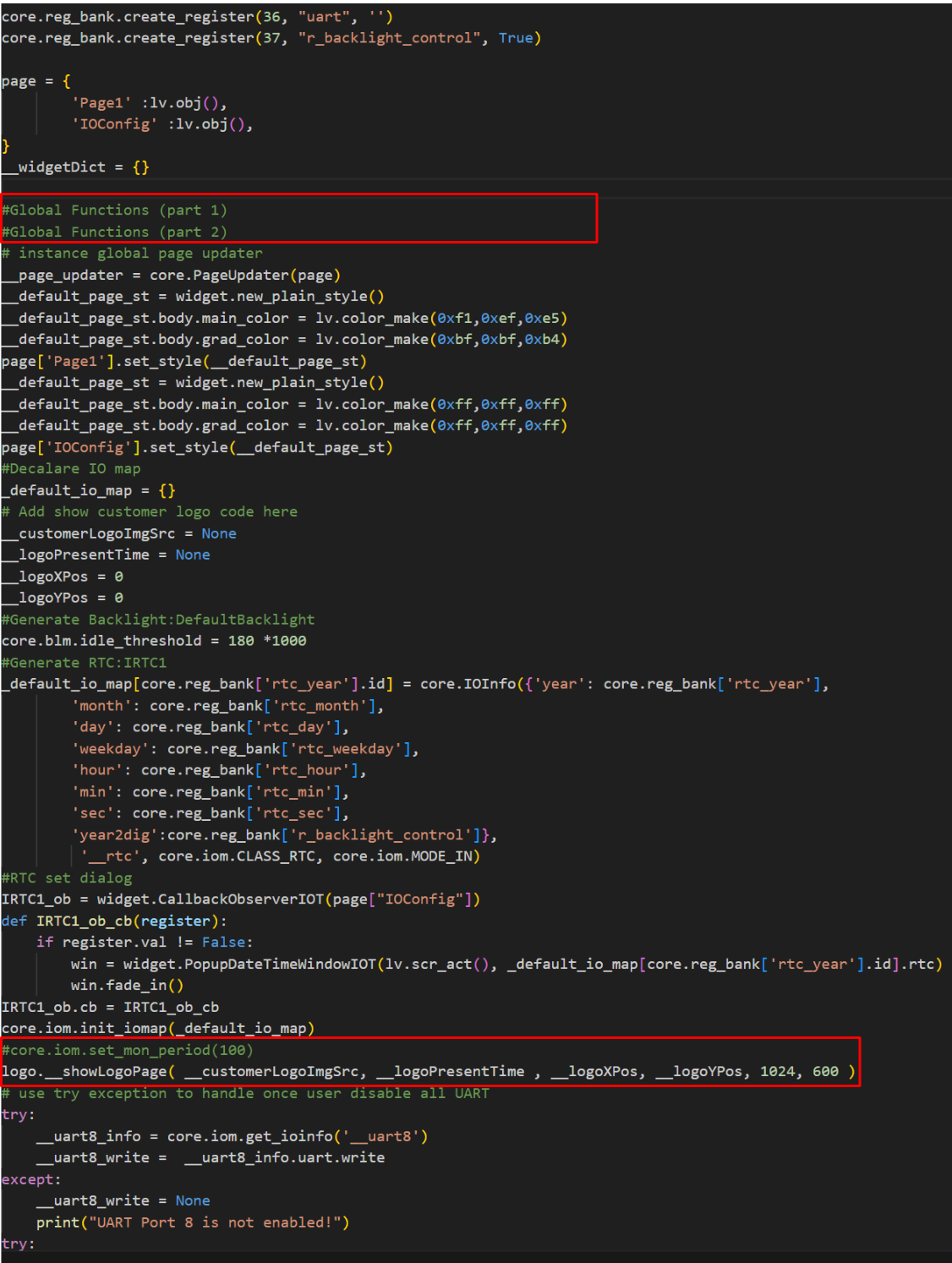
- In ui.py, logo.__showLogoPage() calls core.htm._start_task_handler(), where feed is setup. Python Code Widget’s content is illustrated bellow and the widget is executed in the global function (before logo.__showLogoPage()). It is recommended that core.htm.wdt.feed() should not be inserted in Python Code Widget.
Example:
Conclusion
-
Please do not insert core.htm.wdt.feed() in Python Code Widget. A proper place can be in Timer Widget so that the core.htm.wdt.feed() can be periodically executed, and the watchdog reboot can be avoided.
-
Try-except block is a very versatile debugging tool. Users can read the error message via the console log. (Please refer to Try-Except)
-
ADE’s built-in simulator does not support the watchdog function. Therefore, the watchdog function can only be performed in hardware.
-
The control board enters Load Firmware Mode when the USB cable is connected before powering on. If the USB cable is connected after powering on, then users can read console log via this USB cable.
Example: Design a busy_function in Timer Widget and then add watchdog feed and avoid watchdog reboot
try:
    import core
    def busy_function(duration):
        print('Busy function starting for {} seconds...'.format(duration))
        start_time = time.time()
        while time.time() - start_time < duration:
            # Continue execution
            _ = 0
            for i in range(10000):
                _ += i
            ##call watchdog feed
            print("Feed watchdog.")
            core.htm.wdt.feed()
            print("Watchdog feed successfully.")

        print("Busy function completed.")
	busy_function(30)
except Exception as e:
    print('Error Msg:{}'.format(e))